
Browser extension manual install guide
Download the CRX offline package and install it step by step — ideal when you can't reach the app store.
Installation steps
If you can't reach the app store, download the offline package and follow the steps below (Google Chrome).
1
Download the extension file
Click the button below to download the extension package (ZIP format)
2
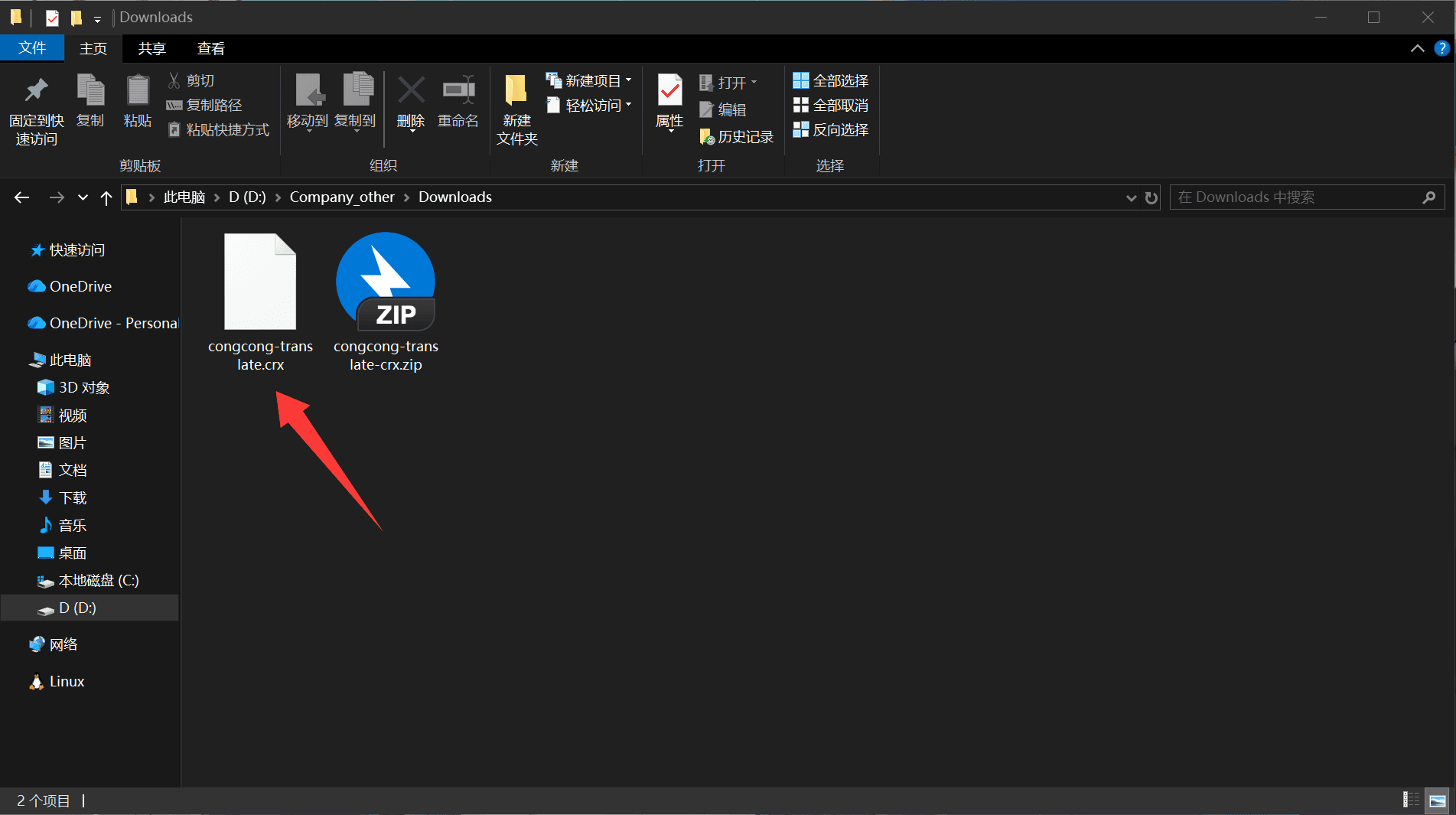
Check the file
Confirm the file is named congcong-translate-crx.zip, then move the downloaded zip to a folder you can easily access
3
Open the extensions page
Type the address below into the Chrome address bar and press Enter
chrome://extensions/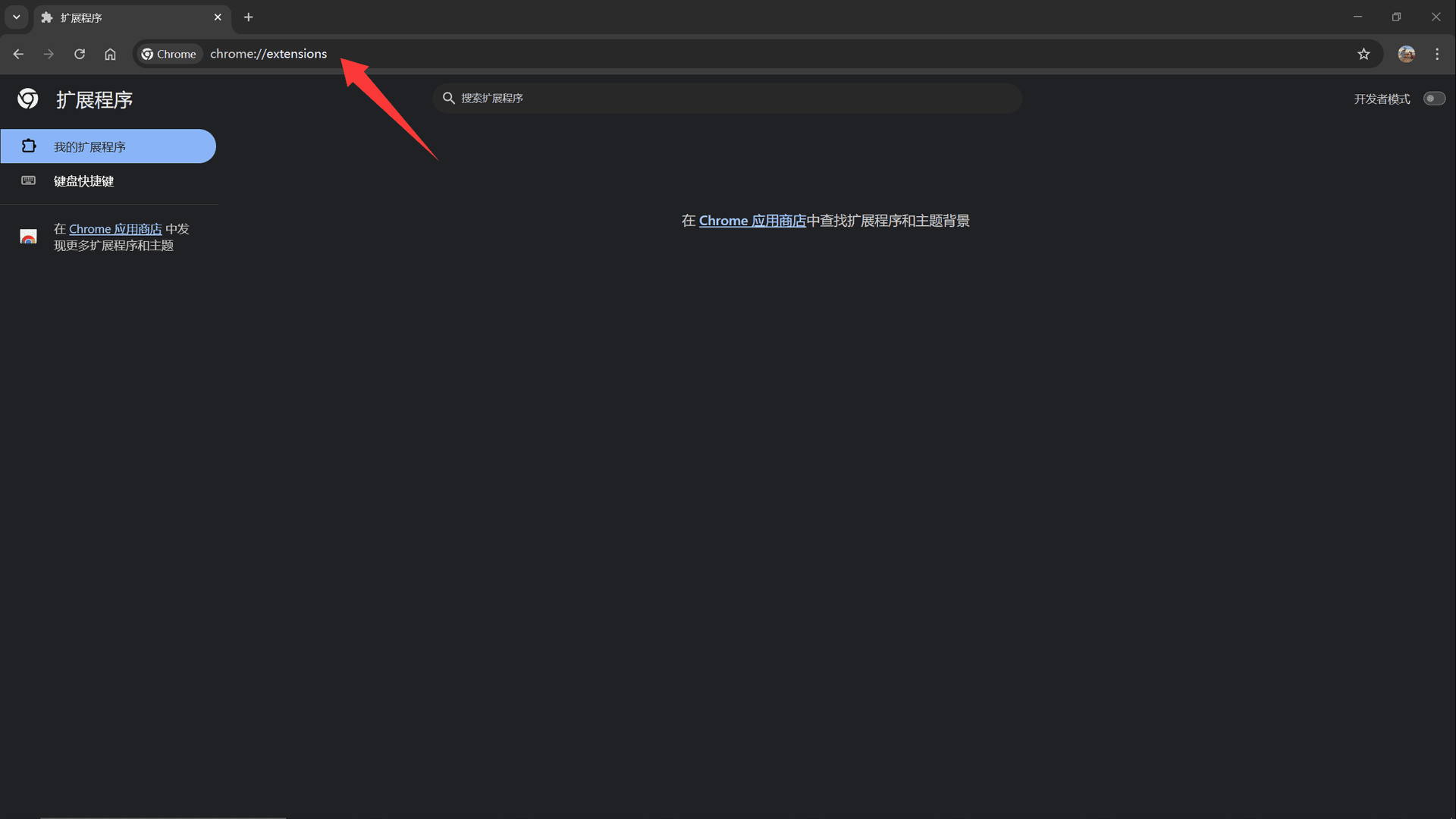
4
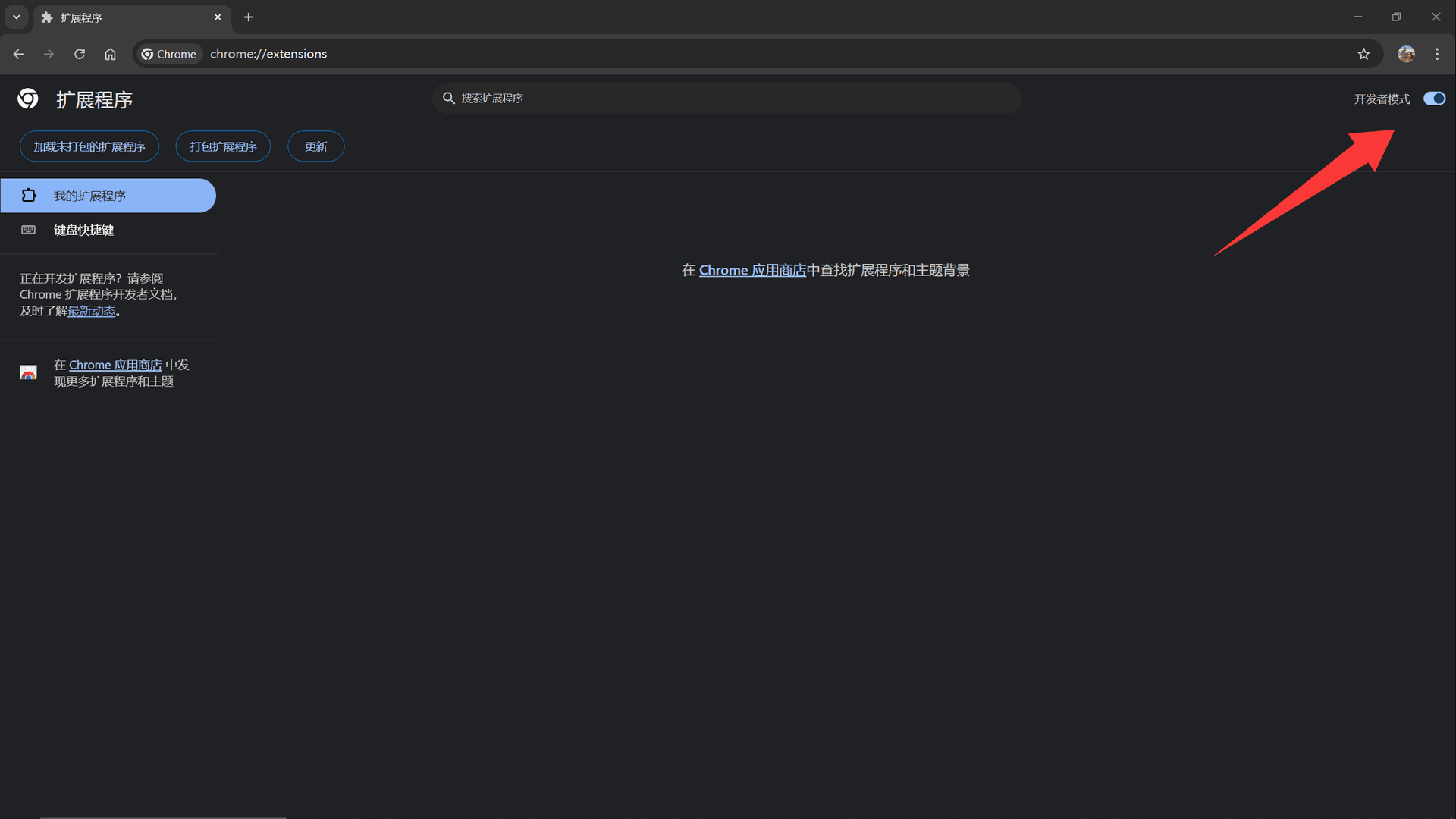
Enable developer mode
In the top-right of the extensions page, find and turn on the "Developer mode" switch
5
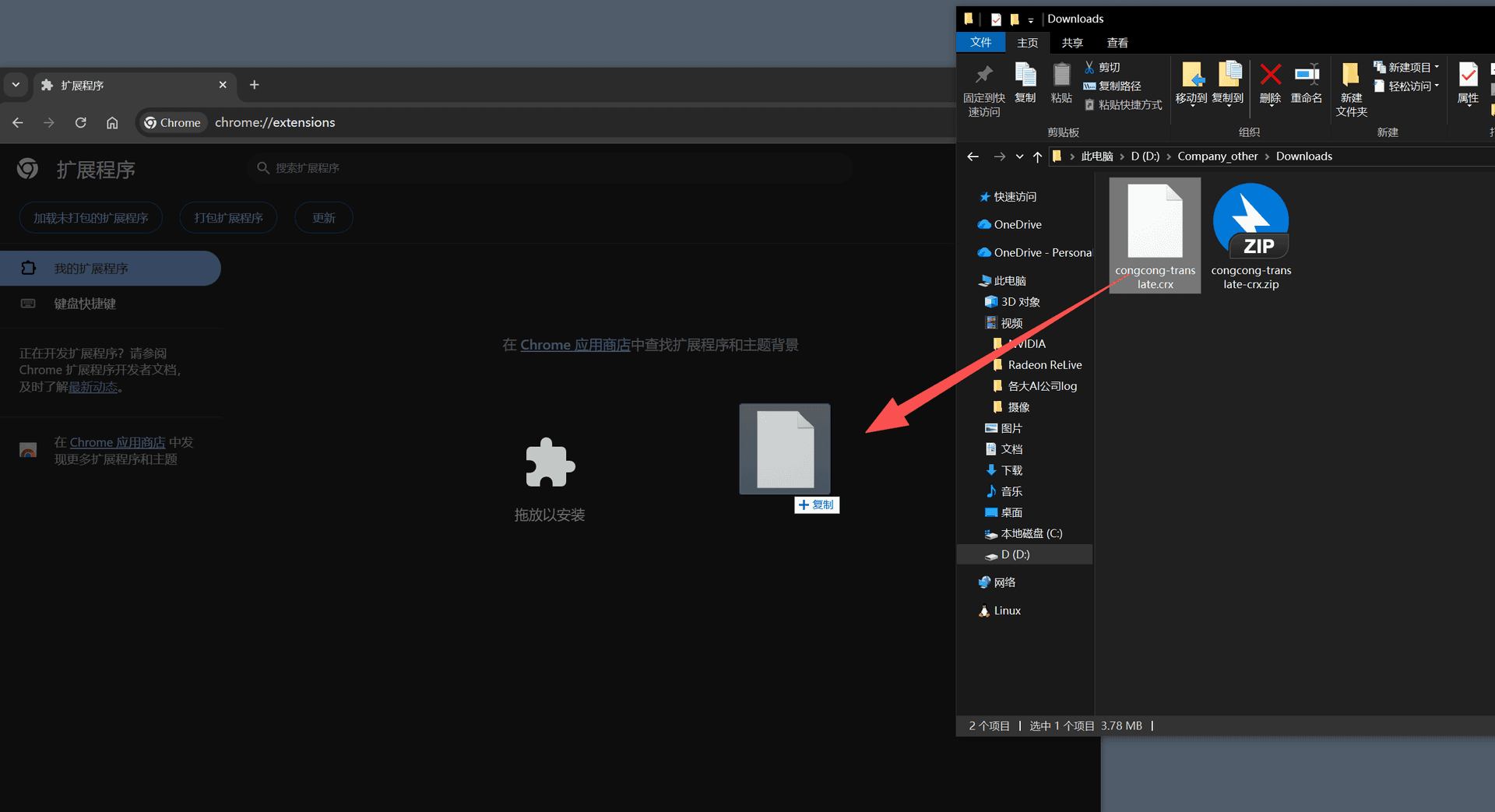
Install the extension
Select the congcong-translate-crx.zip file from step 2 and drag congcong-translate-crx.zip onto the Extensions page to finish installing
💡 Notes
- This page provides the CRX offline package. Download it only from this page or official channels, and never install extensions from unknown sources.
- Do not use "Load unpacked" to install. You must drag the
congcong-translate-crx.zipfile onto the extensions page to complete installation. - If installation fails, make sure "Developer mode" is on and try again.